Welcome to the FlexRadio Community! Please review the new Community Rules and other important new Community information on the Message Board.
The latest SmartSDR Software:
SmartSDR v4.2.20 | SmartSDR v4.2.20 Release Notes
SmartSDR v3.10.15 | SmartSDR v3.10.15 Release Notes
The latest 4O3A Genius Product Software:
The latest 4O3A Genius Product Software and Firmware
SmartSDR v4.2.20 | SmartSDR v4.2.20 Release Notes
SmartSDR v3.10.15 | SmartSDR v3.10.15 Release Notes
The latest 4O3A Genius Product Software:
The latest 4O3A Genius Product Software and Firmware
How to Receive Technical Support::
If you are needing assistance with FlexRadio products, please refer to the product documentation or check the Help Center for known solutions. Need technical support from FlexRadio? It's as simple as creating a HelpDesk ticket.
If you are needing assistance with FlexRadio products, please refer to the product documentation or check the Help Center for known solutions. Need technical support from FlexRadio? It's as simple as creating a HelpDesk ticket.
Do I need to connect my brand new Aurora to the Internet at least once?
Options

alrovner
Member ✭
I have a new Aurora 510 connected to my laptop via a direct Ethernet cable. Everything seems to be working OK. I've been reading through the manuals, and there was a comment about connecting your Flex radio to the Internet so the license could be validated. I've never done that. Is that OK or will something bad happen when I'm on an island on an expedition?
0
Best Answer
-
 Mike-VA3MW Administrator, FlexRadio Employee, Community Manager, Super Elmer, Moderator adminOptions
You could also turn on Internet Connection Sharing on your laptop and that would allow the Aurora internet access. This is a Windows feature.
0
Answers
-
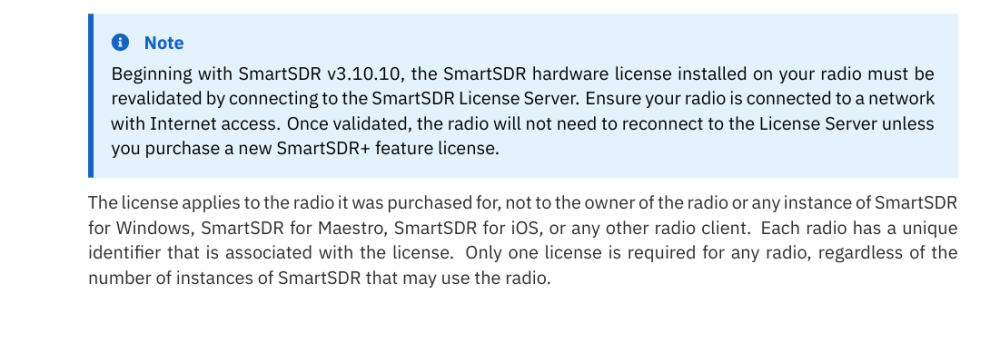
Hi Al, from the latest SmartSDR Software User Guide (page 32), you should connect at least once. I would also load 4.2.18 if the radio is not already on that version.
 0
0 -
Thanks Len, well I did that. Disconnected the Aurora from the laptop and connected it to a spare port on my Ethernet Switch. Then started SmartSDR again. Hopefully OK for now.
73,
Al, K7AR (new Flex owner :-)0 -
I had to connect my 520M to log into smart SDR and click the PTT in the radio once just like above
0



Leave a Comment
Categories
- All Categories
- 401 Community Topics
- 2.2K New Ideas
- 685 The Flea Market
- 8.6K Software
- 194 SmartSDR+
- 6.6K SmartSDR for Windows
- 200 SmartSDR for Maestro and M models
- 456 SmartSDR for Mac
- 278 SmartSDR for iOS
- 268 SmartSDR CAT
- 220 DAX
- 395 SmartSDR API
- 9.6K Radios and Accessories
- 102 Aurora
- 347 FLEX-8000 Signature Series
- 7.2K FLEX-6000 Signature Series
- 994 Maestro
- 58 FlexControl
- 872 FLEX Series (Legacy) Radios
- 970 Genius Products
- 481 Power Genius XL Amplifier
- 357 Tuner Genius XL
- 132 Antenna Genius
- 321 Shack Infrastructure
- 226 Networking
- 482 Remote Operation (SmartLink)
- 144 Contesting
- 845 Peripherals & Station Integration
- 147 Amateur Radio Interests
- 1.1K Third-Party Software