Welcome to the FlexRadio Community! Please review the new Community Rules and other important new Community information on the Message Board.
The latest SmartSDR Software:
SmartSDR v4.2.20 | SmartSDR v4.2.20 Release Notes
SmartSDR v3.10.15 | SmartSDR v3.10.15 Release Notes
The latest 4O3A Genius Product Software:
The latest 4O3A Genius Product Software and Firmware
SmartSDR v4.2.20 | SmartSDR v4.2.20 Release Notes
SmartSDR v3.10.15 | SmartSDR v3.10.15 Release Notes
The latest 4O3A Genius Product Software:
The latest 4O3A Genius Product Software and Firmware
How to Receive Technical Support::
If you are needing assistance with FlexRadio products, please refer to the product documentation or check the Help Center for known solutions. Need technical support from FlexRadio? It's as simple as creating a HelpDesk ticket.
If you are needing assistance with FlexRadio products, please refer to the product documentation or check the Help Center for known solutions. Need technical support from FlexRadio? It's as simple as creating a HelpDesk ticket.
Listening to Digital Mode TX audio
Options

Although SSDR does not currently have a means of monitoring your digital mode TX audio, Windows 7/8 can help by branching the DAX TX audio to the default system sound card.
Starting in the lower right hand corner of your desktop, right click on the speaker symbol and select 'Recording devices'.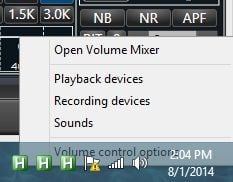
In the resulting 'Audio device manager' window find and select 'DAX Reserved Audio TX1' Properties. Then navigate to the Listen tab and check the 'Listen to this device' box.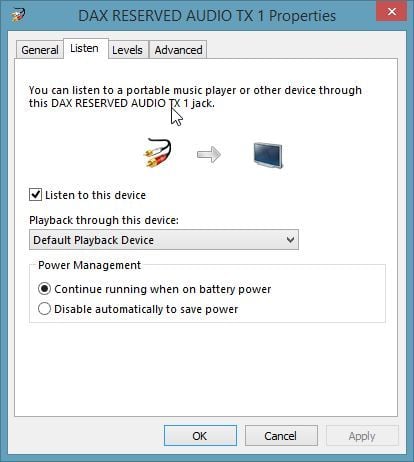
Note the 'Playback through..' is set to Default playback device...( likely your MB system sound card.)
The above steps will branch the DAX TX audio to your system sound card BUT it will be VERY LOUD...
...ADJUSTING the TX Monitor Volume....
Left click on the speaker symbol to bring up the Windows mixer panel. From the sound devices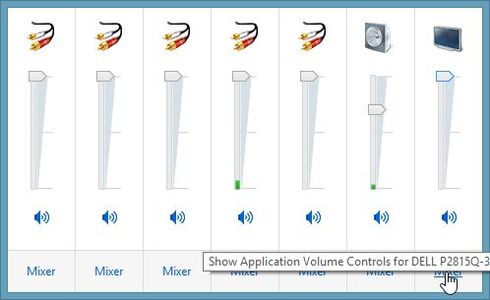
find your system default device and left click on 'Mixer'.
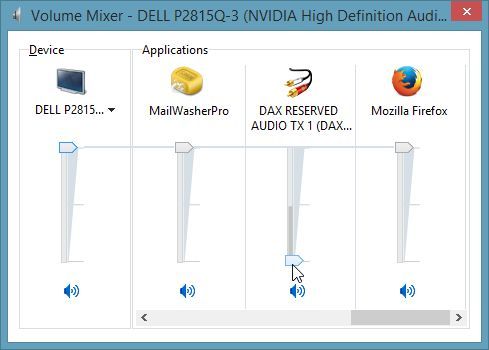
Find the 'DAX RESERVED AUDIO TX1' slider and adjust the monitor volume to you taste
( while transmitting ). I have mine set to 2
AL, K0VM
Starting in the lower right hand corner of your desktop, right click on the speaker symbol and select 'Recording devices'.
In the resulting 'Audio device manager' window find and select 'DAX Reserved Audio TX1' Properties. Then navigate to the Listen tab and check the 'Listen to this device' box.
Note the 'Playback through..' is set to Default playback device...( likely your MB system sound card.)
The above steps will branch the DAX TX audio to your system sound card BUT it will be VERY LOUD...
...ADJUSTING the TX Monitor Volume....
Left click on the speaker symbol to bring up the Windows mixer panel. From the sound devices
find your system default device and left click on 'Mixer'.
Find the 'DAX RESERVED AUDIO TX1' slider and adjust the monitor volume to you taste
( while transmitting ). I have mine set to 2
AL, K0VM
1
Comments
-
I like it!
Don - kx9q0

Leave a Comment
Categories
- All Categories
- 401 Community Topics
- 2.2K New Ideas
- 689 The Flea Market
- 8.6K Software
- 197 SmartSDR+
- 6.6K SmartSDR for Windows
- 200 SmartSDR for Maestro and M models
- 460 SmartSDR for Mac
- 279 SmartSDR for iOS
- 268 SmartSDR CAT
- 220 DAX
- 395 SmartSDR API
- 9.6K Radios and Accessories
- 110 Aurora
- 348 FLEX-8000 Signature Series
- 7.2K FLEX-6000 Signature Series
- 999 Maestro
- 58 FlexControl
- 872 FLEX Series (Legacy) Radios
- 975 Genius Products
- 482 Power Genius XL Amplifier
- 358 Tuner Genius XL
- 135 Antenna Genius
- 322 Shack Infrastructure
- 227 Networking
- 483 Remote Operation (SmartLink)
- 147 Contesting
- 847 Peripherals & Station Integration
- 147 Amateur Radio Interests
- 1.1K Third-Party Software