SmartSDR v4.2.20 | SmartSDR v4.2.20 Release Notes
SmartSDR v3.10.15 | SmartSDR v3.10.15 Release Notes
The latest 4O3A Genius Product Software:
The latest 4O3A Genius Product Software and Firmware
If you are needing assistance with FlexRadio products, please refer to the product documentation or check the Help Center for known solutions. Need technical support from FlexRadio? It's as simple as creating a HelpDesk ticket.
8400 Microphone requirements

The document says to use a dynamic microphone. Does that mean any dynamic microphone? Anything special I need to be aware of?
Answers
-
Hi Doug, the Flex 6000, 8000 and Aurora series will all accept dynamic or electret mics. The thing to be aware of is the pinouts of the mic connector and any power requirements for electret (condenser) mics. Be sure to create your own Mic Profile for each mic that you use with your Flex. That way the defaults won't overwrite what you have whenever you upgrade.
Mics that take "phantom" power will normally need a separate supply (typically high-end studio mics). Electret mics designed for use with computers can normally be used with the bias voltage supplied by the FLex.
For my desk mic, I use a Heil HM-12. It is a dynamic mic with a balanced output. I have a Flex cable that takes that and turns it into pseudo-balanced for my 6400. It also works the same with my 8600.
I also have a Yamaha CM-500 headset with an electret mic I built a simple adapter into a 3.5 mm plug housing.
Here is how I did it:
0 -
I have tried two different studio dynamic mics. I needed to turn the microphone gain up to a relatively high level. While listening through headphones, as I turned the gain up to get enough drive, there was quite a powerful hiss in the background. This rendered these mics unusable. I plugged in a Heil headset, which worked perfectly. I have a Heil HM-12, which I would like to use. It has a 4-pin connector. I have a 4-pin plug to fit it. But I don't know the pin-out for the microphone. Hopefully, the HM-12 will be compatible. I don't understand why the studio mics don't work.
The 6300 (which I am very fond of) has a Yaesu-compatible microphone jack on the front. Many years ago, I wired up a conversion cable that allowed an Icom microphone to work with a Yaesu radio. I used a Heil ICM mic with the 6300. It worked perfectly.
So I'm stuck. Common studio-type dynamic mics DON'T work with the 8400. They do not have enough output to meet the needs of the 8400. Raising the mic gain enough to get proper modulation introduces this unusual background hiss.
0 -
Have you tried turning on the +20dB boost for the microphone?
0 -
I don't see a 20db boost anywhere. Where is it?
0 -
I found a solution to my problem. I had been using a1/4" to 1/8"adapter to fit the mic input on the 8400. I had used a 2-conductor 1/4" from the microphone to a 3-conductor 1/8". That was a mistake. That caused a great deal of noise to be introduced into the audio. When I switched to a 2-conductor 1/4" to 1/8", the noise disappeared. Now everything works perfectly.
0 -
The +20dB microphone boost control in SmartSDR is located in theRadio Setupmenu. Here is how to access it:In SmartSDR, navigate to theSettingsmenu.Select theRadio Setuptab.Go to thePhone/CWsection.Within this section, you will find a checkbox or option to enable the+20dB Mic Boost.
This setting adds 20 dB of additional gain to the microphone input and is commonly used with dynamic microphones that have a lower output level. It is generally not needed for most electret microphones. You can find more detailed instructions in theAdjusting your Microphone Settings for Best TX Audio guideon theFlexRadio HelpDesk.0 -
 Mike-VA3MW Administrator, FlexRadio Employee, Community Manager, Super Elmer, Moderator adminOptions
2 great videos here to help you out:
1 -
I just discovered (quite by accident) that the +20db mic preamp setting in the Settings/Radio Setup/Phone-CW panel is not persistent. (I had always believed that all the settings in the Settings/Radio Setup panel were.) It's necessary to save it to the microphone profile.
0 -
Mike-VA3MW Administrator, FlexRadio Employee, Community Manager, Super Elmer, Moderator adminOptions
It should be persistent.
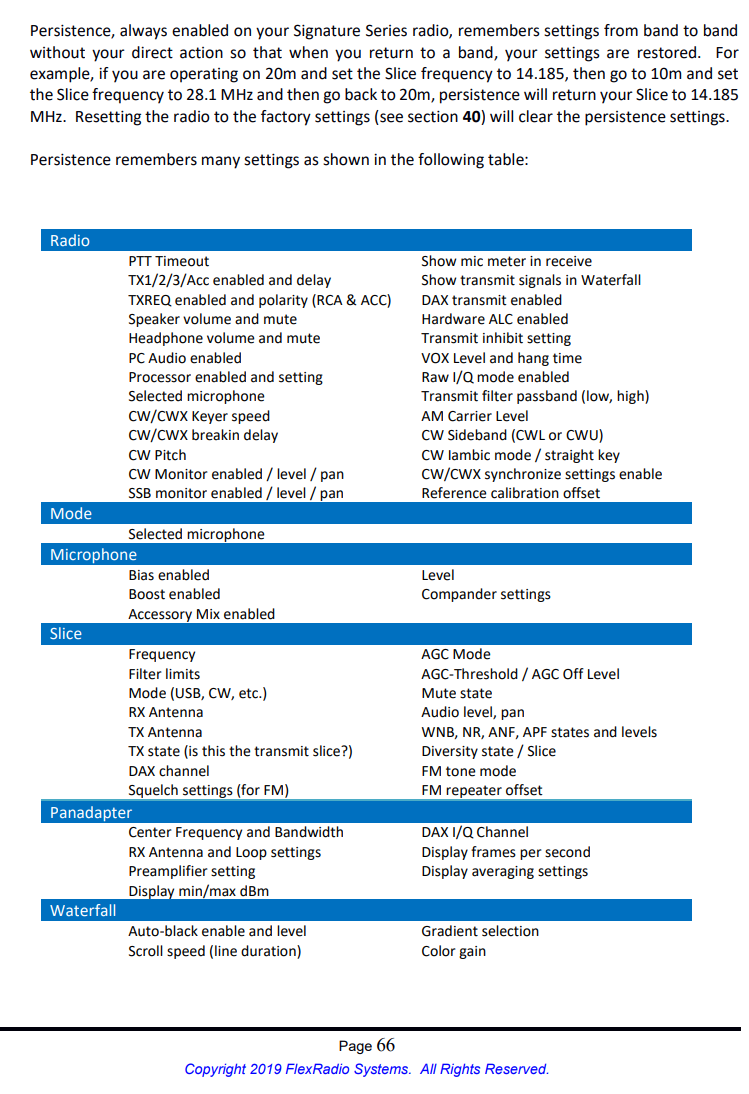
Is there any chance you are changing Mic profiles? Page 70 shows the settings that are saved by the MIC profile.
Theses are the settings saved by persistence.
See if you can see what is changing.
 0
0


Leave a Comment
Categories
- All Categories
- 401 Community Topics
- 2.2K New Ideas
- 689 The Flea Market
- 8.6K Software
- 197 SmartSDR+
- 6.6K SmartSDR for Windows
- 200 SmartSDR for Maestro and M models
- 460 SmartSDR for Mac
- 279 SmartSDR for iOS
- 268 SmartSDR CAT
- 220 DAX
- 395 SmartSDR API
- 9.6K Radios and Accessories
- 109 Aurora
- 348 FLEX-8000 Signature Series
- 7.2K FLEX-6000 Signature Series
- 999 Maestro
- 58 FlexControl
- 872 FLEX Series (Legacy) Radios
- 975 Genius Products
- 482 Power Genius XL Amplifier
- 358 Tuner Genius XL
- 135 Antenna Genius
- 322 Shack Infrastructure
- 227 Networking
- 483 Remote Operation (SmartLink)
- 145 Contesting
- 847 Peripherals & Station Integration
- 147 Amateur Radio Interests
- 1.1K Third-Party Software