SmartSDR v4.1.5 | SmartSDR v4.1.5 Release Notes
SmartSDR v3.10.15 | SmartSDR v3.10.15 Release Notes
The latest 4O3A Genius Product Software:
The latest 4O3A Genius Product Software and Firmware
If you are needing assistance with FlexRadio products, please refer to the product documentation or check the Help Center for known solutions. Need technical support from FlexRadio? It's as simple as creating a HelpDesk ticket.
Power Settings with Global Profiles

When you setup global profile, is the power setting selected not saved too? When I change to a different profile, it seems the power setting stays at what I was on prior to changing profiles.
Best Answer
-
Correct. And there are different transmit profiles assigned to each mode group.
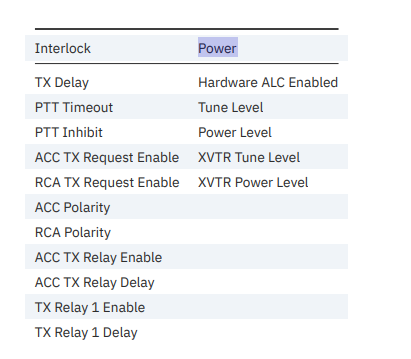
This 'draft' document might help. I was just working on it.
0

Answers
-
We have a brand new SmartSDR manual (just saying that as I was reviewing it).
The details are in section 19.
Power is part of the TX Profile.
 0
0 -
Thanks Mike, I will get this printed off.
To confirm I understand correctly, when creating a Global profile, the power setting does not save, the power setting only saves when creating a Transmit profile?
0 -
Understood, thanks again Mike
Brett W5BLF
0 -
There are a number of 'issues' with that draft. So, I am going to delete it.
The Global profile loads the associated Transmit profile.
According to our expert, @David Decoons, wo2x, this is the way:
How to Build Global Profiles the Right Way
The best approach is to work from the bottom up, one band at a time. Here’s the method:
- Step 1 — Start on your lowest band.
- Configure your Mic Profile for the operating mode you are setting up (SSB, CW, or Digital)
- Select the correct transmit antenna and configure its Transmit Profile
- Dial in all your receiver settings: panadapter position, slice frequency, bandwidth, AGC-T, and any DSP settings
- Save the Global Profile with a meaningful name (e.g. “SSB”)
- Step 2 — Move up one band.
- Adjust all your RX settings for that band — frequency, panadapter, AGC-T, filters
- Save the same Global Profile again — that band’s configuration is added in
- Step 3 — Repeat for every band you operate.
- Work up through all your bands, saving the same profile each time
- Each save adds that band’s receiver configuration to the profile without disturbing the others
- Step 4 — Repeat the entire process for each operating mode.
- Build a separate Global Profile for SSB, CW, and Digital
- Each profile will have its own complete band-by-band RX settings and the correct Mic and Transmit Profile associations for that mode
0 - Step 1 — Start on your lowest band.

Leave a Comment
Categories
- All Categories
- 390 Community Topics
- 2.2K New Ideas
- 662 The Flea Market
- 8.4K Software
- 157 SmartSDR+
- 6.5K SmartSDR for Windows
- 186 SmartSDR for Maestro and M models
- 440 SmartSDR for Mac
- 275 SmartSDR for iOS
- 265 SmartSDR CAT
- 204 DAX
- 386 SmartSDR API
- 9.4K Radios and Accessories
- 55 Aurora
- 297 FLEX-8000 Signature Series
- 7.2K FLEX-6000 Signature Series
- 971 Maestro
- 58 FlexControl
- 867 FLEX Series (Legacy) Radios
- 946 Genius Products
- 473 Power Genius XL Amplifier
- 347 Tuner Genius XL
- 126 Antenna Genius
- 308 Shack Infrastructure
- 216 Networking
- 468 Remote Operation (SmartLink)
- 142 Contesting
- 814 Peripherals & Station Integration
- 144 Amateur Radio Interests
- 1.1K Third-Party Software