Welcome to the FlexRadio Community! Please review the new Community Rules and other important new Community information on the Message Board.
The latest SmartSDR Software:
SmartSDR v4.2.20 | SmartSDR v4.2.20 Release Notes
SmartSDR v3.10.15 | SmartSDR v3.10.15 Release Notes
The latest 4O3A Genius Product Software:
The latest 4O3A Genius Product Software and Firmware
SmartSDR v4.2.20 | SmartSDR v4.2.20 Release Notes
SmartSDR v3.10.15 | SmartSDR v3.10.15 Release Notes
The latest 4O3A Genius Product Software:
The latest 4O3A Genius Product Software and Firmware
How to Receive Technical Support::
If you are needing assistance with FlexRadio products, please refer to the product documentation or check the Help Center for known solutions. Need technical support from FlexRadio? It's as simple as creating a HelpDesk ticket.
If you are needing assistance with FlexRadio products, please refer to the product documentation or check the Help Center for known solutions. Need technical support from FlexRadio? It's as simple as creating a HelpDesk ticket.
Aurora AU-520M split button
Options

I hate to ask this question, because the answer is probably simple. I am running the 520M without SSDR. I do not see a Split button on the screen. Obviously I can enable the B slice, set the band and freq, tap the B Slice TX and I can work split. Isn't there an automatice button somewhere like on SSDR?
Mike AD5A
Mike AD5A
0
Comments
-
Hi Mike, from the Maestro User Guide page 82:
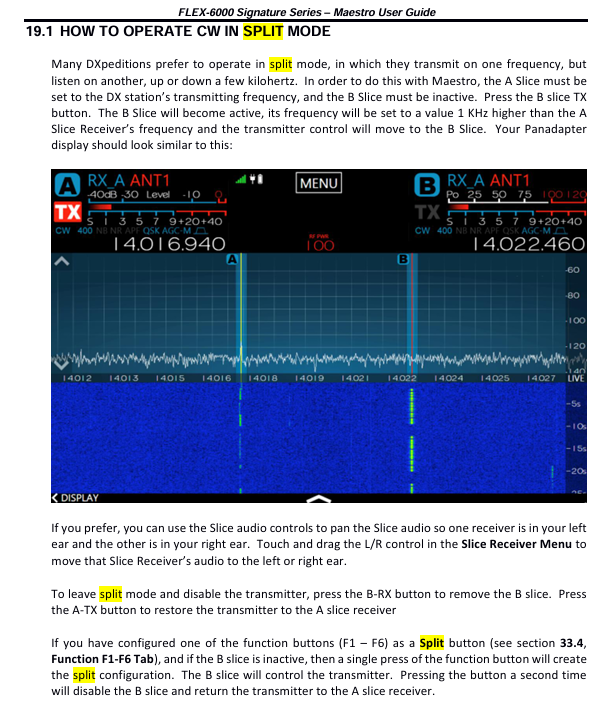
Note the part about setting up a function button.
0 -
Thanks Lee. I understood how to do it manually. What I am referring to is that Smart SDR has a split button on the Slice to the left of the TX indicator. You click that and things happen automatically. I guess with the 520M a Function button must be programmed for it to be automatic. There appears to be room next to the ANT1 indicator to put a split button. At least I feel better that I wasn't just not finding it on the screen. Thanks again for the response.0
-
 Mike-VA3MW Administrator, FlexRadio Employee, Community Manager, Super Elmer, Moderator adminOptions
Aurora operates identically as all other radios.
If you want to operate Split on an M model or Maestro, touch the TX button on the B slide control.
Your transmitter will switch to that slice and you will be up 1Khz for CW and 5Khz for SSB.
73
0

Leave a Comment
Categories
- All Categories
- 401 Community Topics
- 2.2K New Ideas
- 689 The Flea Market
- 8.6K Software
- 196 SmartSDR+
- 6.6K SmartSDR for Windows
- 200 SmartSDR for Maestro and M models
- 460 SmartSDR for Mac
- 279 SmartSDR for iOS
- 268 SmartSDR CAT
- 220 DAX
- 395 SmartSDR API
- 9.6K Radios and Accessories
- 109 Aurora
- 348 FLEX-8000 Signature Series
- 7.2K FLEX-6000 Signature Series
- 999 Maestro
- 58 FlexControl
- 872 FLEX Series (Legacy) Radios
- 975 Genius Products
- 482 Power Genius XL Amplifier
- 358 Tuner Genius XL
- 135 Antenna Genius
- 322 Shack Infrastructure
- 227 Networking
- 483 Remote Operation (SmartLink)
- 145 Contesting
- 847 Peripherals & Station Integration
- 147 Amateur Radio Interests
- 1.1K Third-Party Software