Welcome to the FlexRadio Community! Please review the new Community Rules and other important new Community information on the Message Board.
The latest SmartSDR Software:
SmartSDR v4.1.5 | SmartSDR v4.1.5 Release Notes
SmartSDR v3.10.15 | SmartSDR v3.10.15 Release Notes
The latest 4O3A Genius Product Software:
The latest 4O3A Genius Product Software and Firmware
SmartSDR v4.1.5 | SmartSDR v4.1.5 Release Notes
SmartSDR v3.10.15 | SmartSDR v3.10.15 Release Notes
The latest 4O3A Genius Product Software:
The latest 4O3A Genius Product Software and Firmware
How to Receive Technical Support::
If you are needing assistance with FlexRadio products, please refer to the product documentation or check the Help Center for known solutions. Need technical support from FlexRadio? It's as simple as creating a HelpDesk ticket.
If you are needing assistance with FlexRadio products, please refer to the product documentation or check the Help Center for known solutions. Need technical support from FlexRadio? It's as simple as creating a HelpDesk ticket.
How can I view the entire radio setup window?

chuckad4es5395
Member ✭
in SmartSDR+
When I click on Settings then radio setup and view the radio tab the information regarding smart SDR+ and smart SDR++ is cut off as if the window is not large enough. I can see at the bottom "License Info" and Subscription NONE Expiration None but nothing below that. Please note that I have ordered the SDR+ even though it says NONE.
What can I do to see the entire window?
What can I do to see the entire window?
Tagged:
0
Answers
-
Hi,
It would be helpful to have a screenshot of the window
and which version of Windows you are using.0 -
Klaus,
I have a screen shot but I do not understand how I can post that. Please help!!
I am using Windows 11 and Flex 4.1.5:0 -
Hi Chuck… create a message here and in the body 'paste' your screenshot. If it doesn't work, it may be because the forum software wants you to make a couple (or so) 'regular' messages before it allows adding pictures.
0 -
Hi Chuck,
if you see this here: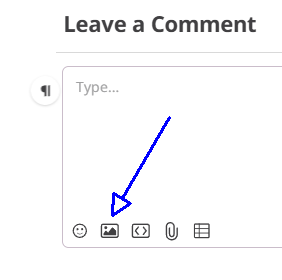
Click on the picture icon and your file manager will open.
Select your screenshot and you're ready to go.
If your system does not provide this function, simply send me the image to om@df3rp.de and
I will post it here.
73 Klaus0



Leave a Comment
Categories
- All Categories
- 388 Community Topics
- 2.2K New Ideas
- 658 The Flea Market
- 8.4K Software
- 156 SmartSDR+
- 6.5K SmartSDR for Windows
- 186 SmartSDR for Maestro and M models
- 439 SmartSDR for Mac
- 275 SmartSDR for iOS
- 265 SmartSDR CAT
- 204 DAX
- 386 SmartSDR API
- 9.4K Radios and Accessories
- 52 Aurora
- 297 FLEX-8000 Signature Series
- 7.2K FLEX-6000 Signature Series
- 970 Maestro
- 58 FlexControl
- 866 FLEX Series (Legacy) Radios
- 944 Genius Products
- 471 Power Genius XL Amplifier
- 347 Tuner Genius XL
- 126 Antenna Genius
- 306 Shack Infrastructure
- 215 Networking
- 468 Remote Operation (SmartLink)
- 142 Contesting
- 811 Peripherals & Station Integration
- 144 Amateur Radio Interests
- 1.1K Third-Party Software