SmartSDR v4.1.5 | SmartSDR v4.1.5 Release Notes
SmartSDR v3.10.15 | SmartSDR v3.10.15 Release Notes
The latest 4O3A Genius Product Software:
The latest 4O3A Genius Product Software and Firmware
If you are needing assistance with FlexRadio products, please refer to the product documentation or check the Help Center for known solutions. Need technical support from FlexRadio? It's as simple as creating a HelpDesk ticket.
V4.0.1 Radio disconnect on band change - SOLVED

After upgrading from SmartSDR ver 3.8.x to ver 4.0.1, on Windows 11, and following the release notes carefully: I found that changing bands in WSJT-X software would occasionally (~30% of the time) cause the radio to disconnect, and the power light on the Flex 6600 chassis to blink red.
I noticed another poster having the same type of issues.
SOLUTION: While not specifically called out in the release notes as required, it seems that doing a FACTORY RESET after the upgrade may be an important step. The reset did completely and immediately clear up this issue, and everything is working as expected now.
I hope this information helps other people.
73,
Neal AB6G
Comments
-
Hi Neal
This is something we have been recommending if you see anything unusual at all. Glad you got it sorted out.
And, engineering is looking for a root cause as to why.
Mike
0 -
I also have a problem with SmartSDR losing connection with my 8600 due to the 8600 crashing when changing bands from 40 or higher (where I have the Tuner Genius bypassed) to 80M where the tuner is not bypassed. It would crash about 30-50% of the time. I believe I traced the problem to the Tuner Genius. I did a factory reset of the Tuner Genius, reprogrammed it and so far the crashing has stopped. I'll keep my fingers crossed.
0 -
Resolved Issue: FlexRadio 8600 Rebooting and SmartSDR Blank Panadapter
After carefully monitoring when the radio rebooted and completing the full factory‑reset process typically recommended to resolve this behavior, I identified that the root cause was related to a small number of corrupted profiles. I wanted to avoid rebuilding all of my Mic, TX, and Global profiles from scratch, so I continued troubleshooting until I discovered a consistent pattern.
Ultimately, I found that two Global Profiles were repeatedly triggering either:
- A full reboot of the FlexRadio 8600, or
- A blank panadapter (PAN) display within SmartSDR.
Deleting only those two problematic profiles and recreating them resolved the issue completely.
Detailed Procedure
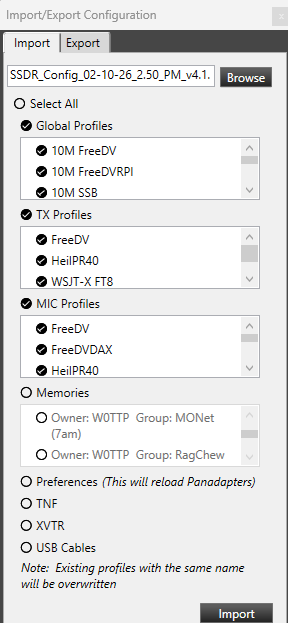
- Exported all radio settings before making changes.
- Performed a full factory reset, following the steps documented by Tim Ellison in the “How to completely reset an Aurora/Flex‑8000/6000” guide.
- Imported only “Custom” profiles, specifically:
- Global Profiles
- TX Profiles
- Mic Profiles
I did not import any built‑in/default profiles.
- Did not import Memories, since those can be reviewed easily via the Excel‑format export.
- Did not import:
- Preferences
- TNFs
- XVTR settings
- USB Cable configurations
- Identified two Global Profiles that consistently caused either radio reboots or SmartSDR display issues.
- Deleted those two profiles, then recreated them manually based on working profile copies.
- After these steps, the radio has been stable with no further issues.
 2
2 -
Update: After doing a factory reset of my Radio, I then imported, deleted, and recreated the profiles that were causing the Radio to reboot. This process worked for a while, but then I started seeing profiles cause reboots again, and the radio would just randomly reboot. I performed a factory reset and spent half a day rebuilding all my mix, TX, and global profiles from scratch. ** (That was not good) from scratch.) ** Flex, you are going to have to get this fixed. Just doing version upgrades that require you to rebuild your Radio from scratch is NOT a good thing.
0




Leave a Comment
Categories
- All Categories
- 388 Community Topics
- 2.2K New Ideas
- 658 The Flea Market
- 8.4K Software
- 156 SmartSDR+
- 6.5K SmartSDR for Windows
- 186 SmartSDR for Maestro and M models
- 439 SmartSDR for Mac
- 275 SmartSDR for iOS
- 265 SmartSDR CAT
- 204 DAX
- 386 SmartSDR API
- 9.4K Radios and Accessories
- 53 Aurora
- 297 FLEX-8000 Signature Series
- 7.2K FLEX-6000 Signature Series
- 970 Maestro
- 58 FlexControl
- 866 FLEX Series (Legacy) Radios
- 944 Genius Products
- 471 Power Genius XL Amplifier
- 347 Tuner Genius XL
- 126 Antenna Genius
- 306 Shack Infrastructure
- 215 Networking
- 468 Remote Operation (SmartLink)
- 142 Contesting
- 811 Peripherals & Station Integration
- 144 Amateur Radio Interests
- 1.1K Third-Party Software