SmartSDR v4.2.18 | SmartSDR v4.2.18 Release Notes
SmartSDR v3.10.15 | SmartSDR v3.10.15 Release Notes
The latest 4O3A Genius Product Software:
The latest 4O3A Genius Product Software and Firmware
If you are needing assistance with FlexRadio products, please refer to the product documentation or check the Help Center for known solutions. Need technical support from FlexRadio? It's as simple as creating a HelpDesk ticket.
FreeDV Docker container for 8000/Aurora series

Hi all,
I'm one of the developers on the FreeDV project. I mentioned this on a FlexRadio related mailing list but for those who haven't seen this yet, I wanted to make you aware that there is now a Docker container available that you can install onto your Flex 8000 or Aurora series running the most recent version of SmartSDR. To set this up:
- Download the Docker container from https://github.com/drowe67/freedv-gui/releases/download/v2.3.1/freedv-waveform-2.3.1.tar.gz (Current version: 2.3.1, released today.).
Note: do not decompress the .tar.gz file. SmartSDR needs the file as-is in order for the FreeDV waveform to properly function. - Go to File→Waveforms in SmartSDR. You'll see something like the following:
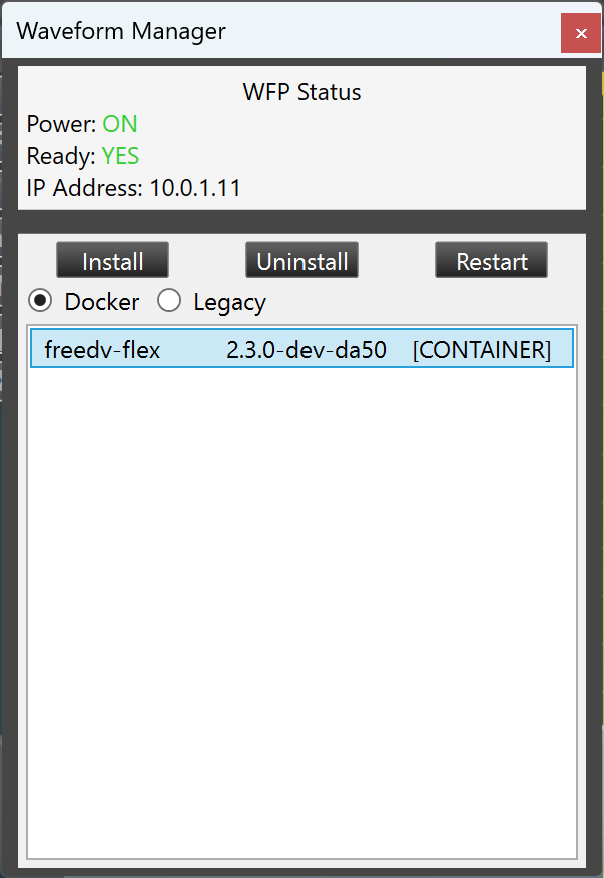
- Click on the "Docker" radio button and then click Install. When prompted, choose the .tar.gz file you downloaded above.
- The Install button will change to "…". Once it finishes installing the Docker container, the label will become "Install" again and there will be a new "freedv-flex" entry in the list. "FDVU" for FreeDV on Upper Sideband and "FDVL" for FreeDV on Lower Sideband modes will then become available for use in SmartSDR.

Operation in SmartSDR is similar to operating in regular voice modes with a few differences:
- DAX should NOT be enabled for the slice using FreeDV. Otherwise, no TX audio will go out.
- The FreeDV waveform can only be used on one slice at a time. Attempting to use it on more than one slice will cause the waveform to switch other slices back to regular USB or LSB modes. (Note: it is possible to use the FreeDV application on a second slice without interfering with the waveform.)
The waveform/Docker container also supports FreeDV Reporter and will connect to that server when you set the active slice to FDVU/FDVL. This is particularly useful for seeing who's currently on FreeDV and how propagation is doing (for instance, rows will immediately light up in blue when they're decoding a signal).
Anyway, hope you guys enjoy! Feel free to comment with questions or feedback :)
Thanks,
-Mooneer K6AQ
Comments
-
Ive downloaded the file following your directions. it doesn’t show up in the waveform manager. where should that file go so it will?
0 -
It should appear as soon as you select the downloaded file in the window that comes up when you push the Install button. Does it come up if you restart the radio?
0 -
Very nice, Mooneer! This will make FDV much more accessible.
73,
Dan0 -
Mooneer, is there a step I'm missing when installing the container in SmartSDR v4.2.18? I went to File → Waveforms like you indicated:
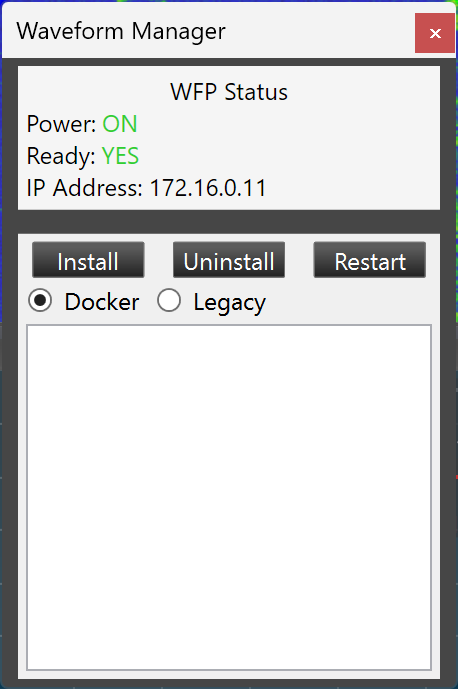
I clicked Install and pointed it at the freedv-waveform-2.3.1.tar.gz I downloaded from the Github repository. The Install button changed to a grey button with progress dots like this:
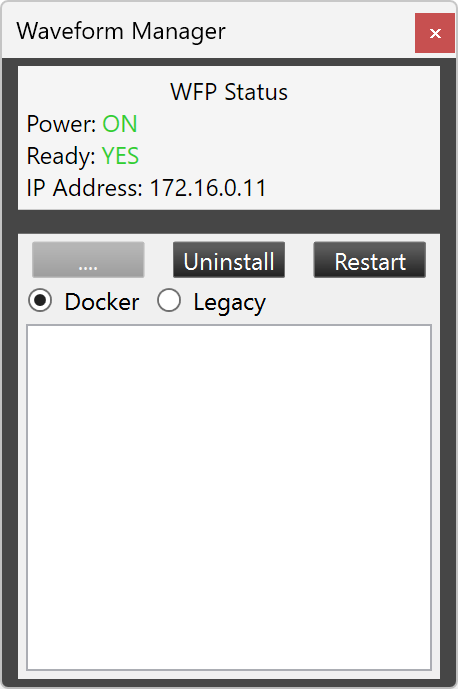
After about 30 seconds, the button changes back to a normal Install button, but nothing is added to the list below. No error message was generated. I tried with the 2.3.0 release and got the same results. I also tried restarting SmartSDR and my 8600 multiple times, but always with the same result.
Is there an installation log created somewhere?
Thanks and 73,
Don, K4PEZ
0


Leave a Comment
Categories
- All Categories
- 394 Community Topics
- 2.2K New Ideas
- 671 The Flea Market
- 8.5K Software
- 179 SmartSDR+
- 6.5K SmartSDR for Windows
- 191 SmartSDR for Maestro and M models
- 454 SmartSDR for Mac
- 276 SmartSDR for iOS
- 267 SmartSDR CAT
- 216 DAX
- 389 SmartSDR API
- 9.5K Radios and Accessories
- 83 Aurora
- 323 FLEX-8000 Signature Series
- 7.2K FLEX-6000 Signature Series
- 983 Maestro
- 58 FlexControl
- 869 FLEX Series (Legacy) Radios
- 957 Genius Products
- 476 Power Genius XL Amplifier
- 350 Tuner Genius XL
- 131 Antenna Genius
- 312 Shack Infrastructure
- 218 Networking
- 476 Remote Operation (SmartLink)
- 143 Contesting
- 836 Peripherals & Station Integration
- 146 Amateur Radio Interests
- 1.1K Third-Party Software