SmartSDR v4.1.5 | SmartSDR v4.1.5 Release Notes
SmartSDR v3.10.15 | SmartSDR v3.10.15 Release Notes
The latest 4O3A Genius Product Software:
The latest 4O3A Genius Product Software and Firmware
If you are needing assistance with FlexRadio products, please refer to the product documentation or check the Help Center for known solutions. Need technical support from FlexRadio? It's as simple as creating a HelpDesk ticket.
F 6700-USB cable

I work on interfacing my F 6700 with SPE amplifier using Flex USB port. In SSDR I opened USB cables window, plugged in a quality USB to RS 232 cable with but nothing appears in it. Have tried two cables with the same result, one of them is a MOXA USB to RS232 converter, I also tried a MOXA hub.
Need you advice.
Tom
Answers
-
Hi Tom, the USB cable needs to be a genuine FTDI cable.
0 -
Thanks for your comment, OM Len. All cables I tested work with other applications but not with my Flex.
I have tested my another cable from my Elecraft KX3 and this one works. I made an adapter to its audio plug, connected a DB 15 connector and my SPE amp works fine.
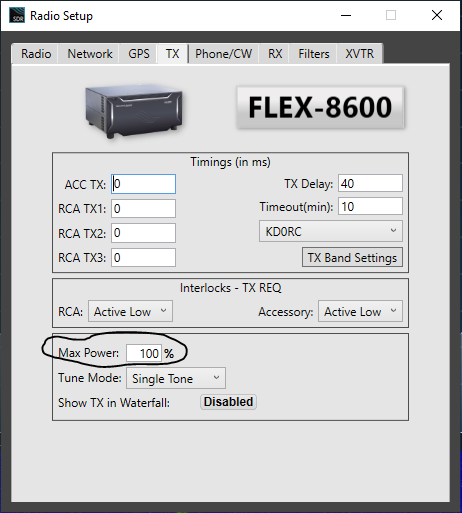
One more question: In SSDR I can not increase RF power to more than 2 W. I can move RF slider but it instantly goes back. This power output gives me about 130W out on power MID range on SPE.
Is it a way of going slightly more with RF out on Flex? What sets the limit on 2 W RF output?
Tom
0 -
Hi Tom, make sure that Max Power is turned up:
 0
0 -
Mr Radio,
I have successfully interfaced my SPE 2K-FA to my 6700 by plugging the USB cable straight from the 6700 to the amp with no RS-232 adapter. You heard me correct. You'll have to look in windows device manager to find the serial port assigned to that USB port and then use the flow through feature of SmartSDR and SmartSDR CAT.
You'll also have to use SPE's Term_2K_232 program and NOT the Term_2K_USB version that would normally be used with the USB cable. A USB hub will be required to provide enough ports for all of the requirements because you'll also need a custom USB cable for frequency control of each VFO (KC5PCB2 makes them) for fully automatic control (2 cables for SO2R).
This setup works well with Smartlink over the internet and does NOT need a local computer attached directly to the AMP! It does require a computer at the user end to run both SmartSDR and the SPE app. This is just a quick overview of the setup and I'm working on a more complete set of instructions
I have been using this setup for months and in many ways like it better than my PGXL. It is a more complicated arrangement but is totally immune to Lan issues that connect the Flex, PGXL, TGXL, AG. All of its corresponding components are internal to the SPE amp.
More detailed instructions whenever I get the time to put it together.
73,
Bill AB7AA
0 -
I do appreciate your interest and responses, OM Bill and OM Len.
My SPE is a 1.5 model ad does have an USB. I prepare my setup to use it as my PG will be undergoing repairs in Austin.
I checked max power in TX settings and is 100% interestingly it remains 100% even if I change it to a lower value and open TX window again.
0 -
An update:
In SPE I changed CAT to Kenwood and SPE also follows Flex. Moreover, in SSDR I can adjust RF power to any level.
Thanks for assistance OMs
Tom
0


Leave a Comment
Categories
- All Categories
- 390 Community Topics
- 2.2K New Ideas
- 664 The Flea Market
- 8.4K Software
- 157 SmartSDR+
- 6.5K SmartSDR for Windows
- 186 SmartSDR for Maestro and M models
- 441 SmartSDR for Mac
- 275 SmartSDR for iOS
- 265 SmartSDR CAT
- 206 DAX
- 386 SmartSDR API
- 9.5K Radios and Accessories
- 58 Aurora
- 297 FLEX-8000 Signature Series
- 7.2K FLEX-6000 Signature Series
- 974 Maestro
- 58 FlexControl
- 867 FLEX Series (Legacy) Radios
- 947 Genius Products
- 473 Power Genius XL Amplifier
- 347 Tuner Genius XL
- 127 Antenna Genius
- 308 Shack Infrastructure
- 216 Networking
- 470 Remote Operation (SmartLink)
- 142 Contesting
- 816 Peripherals & Station Integration
- 144 Amateur Radio Interests
- 1.1K Third-Party Software