Welcome to the FlexRadio Community! Please review the new Community Rules and other important updates on the Message Board.
The latest SmartSDR Software:
SmartSDR v4.3.16 | SmartSDR v4.3.16 Release Notes
SmartSDR v3.10.15 | SmartSDR v3.10.15 Release Notes
The latest 4O3A Genius Product Software: The latest 4O3A Genius Product Software and Firmware
How to Receive Technical Support: If you are needing assistance with FlexRadio products, please refer to the product documentation or check the Help Center for known solutions.
Need technical support from FlexRadio? It's as simple as creating a HelpDesk ticket.
DX Spots using 6500 with Logger32

My system is Flex6500 with SmartSDR 4.2.20 on PC Windows 10 running Logger32 and SmartSDR
Within Logger32 I open the DX spot Telnet window and connect to RBN.
with the 6500 in CW mode and clicking on a CW mode DX spot the radio changes to the correct spot band and Frequency but the mode always changes to SSB.
If I change the radio feeding Logger32 to my K4D I note that the Spots work correctly and remain in CW mode, therefore I concluded that the problem lay within the Flex domain.
Having check all the menus in Logger32 as well as on the Flex I cannot find anything amiss or that would change the mode of the spot message always to SSB
I wonder if anyone else has seen this or has any further advice on why this might be happening.
73
Mal G3PDH
Answers
-
 Mike-VA3MW Administrator, FlexRadio Employee, Community Manager, Super Elmer, Moderator adminOptions
Here is what I would do.
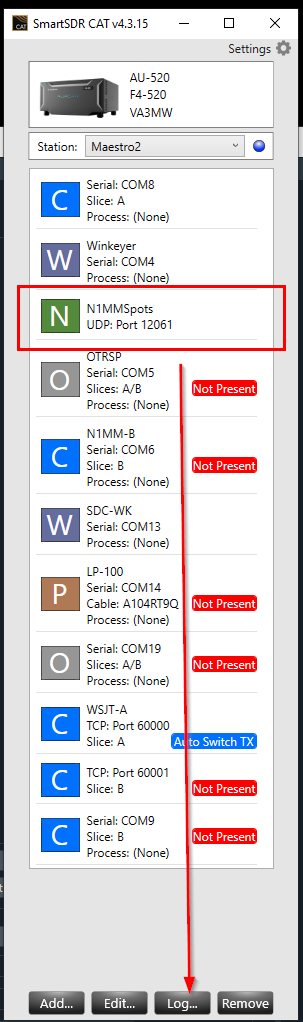
- Open the SmartSDR CAT an look for the N1MM Spot link (see picture). Click on it to highlight it.
- Click on LOG
- Now, test both radios
- Here is the fun part. Capture ALL the data and dump it into Claude or ChatGPT and ask it your exact question above.
- It will analyze the log for your band/mode changes and give you a good answer about what is happening in the communications between the radio and the logger.
Let us know what you find out.
 0

Leave a Comment
Categories
- All Categories
- 417 Community Topics
- 2.2K New Ideas
- 716 The Flea Market
- 8.7K Software
- 225 SmartSDR+
- 6.6K SmartSDR for Windows
- 212 SmartSDR for Maestro and M models
- 472 SmartSDR for Mac
- 282 SmartSDR for iOS
- 270 SmartSDR CAT
- 225 DAX
- 397 SmartSDR API
- 9.7K Radios and Accessories
- 140 Aurora
- 387 FLEX-8000 Signature Series
- 7.3K FLEX-6000 Signature Series
- 1K Maestro
- 58 FlexControl
- 876 FLEX Series (Legacy) Radios
- 1K Genius Products
- 495 Power Genius XL Amplifier
- 366 Tuner Genius XL
- 139 Antenna Genius
- 333 Shack Infrastructure
- 237 Networking
- 500 Remote Operation (SmartLink)
- 150 Contesting
- 867 Peripherals & Station Integration
- 148 Amateur Radio Interests
- 1.2K Third-Party Software